
What stops working on Feb 20, and what doesn’t
Stops working
- Integrations that log in through a connected app with the OAuth 2.0 username-password flow, the one that sends a username and password to get a token.
- The user-agent and hybrid user-agent OAuth flows, which retire the same day.
Keeps working
- People logging in to Salesforce, with a password, SSO or MFA.
- Integrations already on the web-server, client credentials or JWT bearer flows.
It fails quietly. The integration just can’t get a token, so the first sign is usually a report or a dashboard that stopped updating.
Orgs created in Summer ’23 or later block username-password flows by default. Older orgs are where the risk is.
Feb 20 is one of four login deadlines
All four are on the Release Updates page in your org’s Setup. If you’re touching an integration for Feb 20, fix it once: the right flow, on an External Client App.
SOAP API
login()needs the Use Any API Auth permission.The username-password, user-agent and hybrid user-agent OAuth flows retire.
Summer ’27
SOAP API
login()retires in API versions 31.0 to 64.0.Summer ’27
Connected Apps support ends. Salesforce asks customers to move to External Client Apps by May 31, 2027.
Check your org in about ten minutes
Three steps in Setup. The screens below are from Maple’s own org; select one to open it full size.
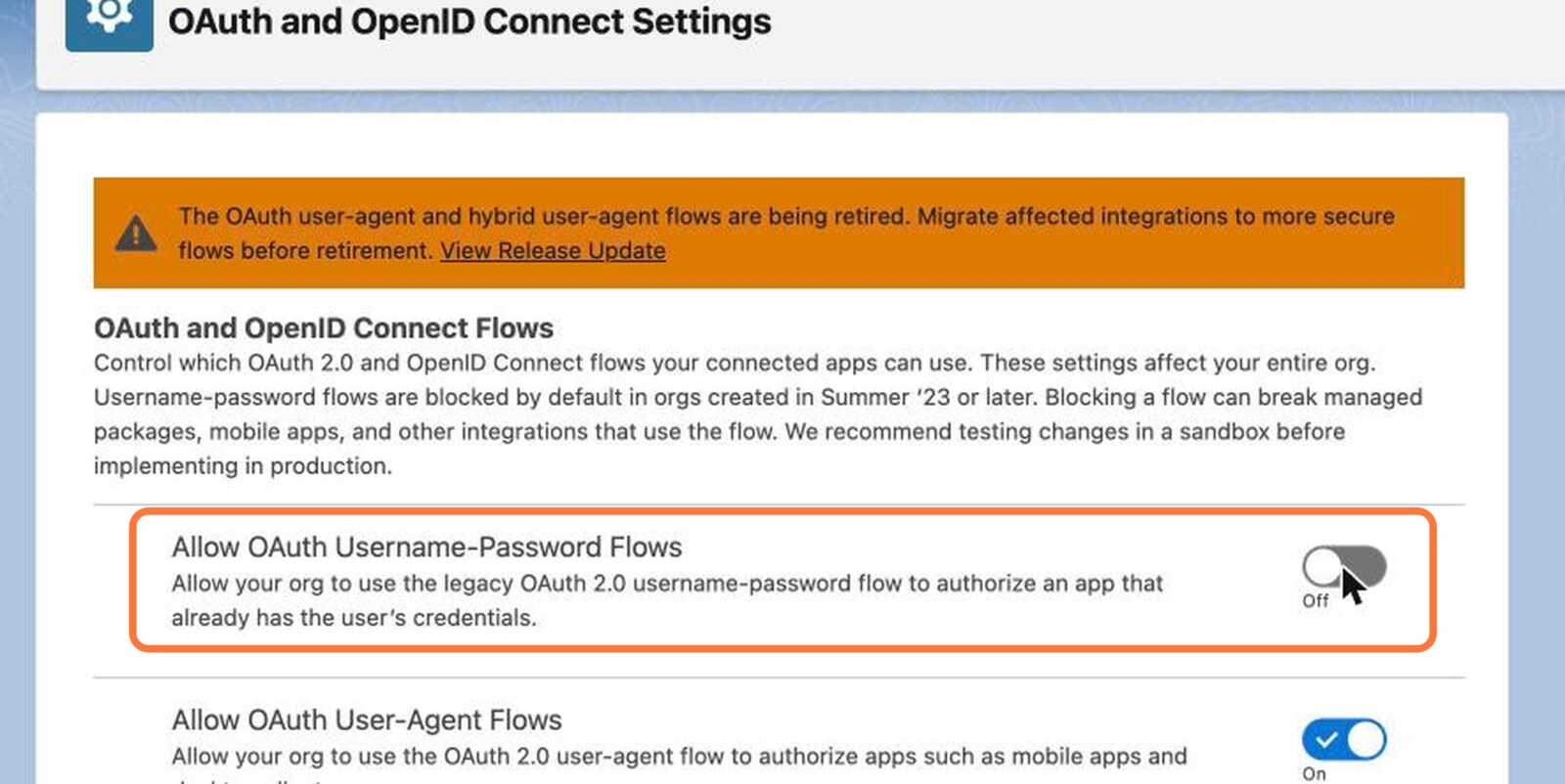
Step 1: Check the setting
In Setup, type OAuth into Quick Find and open OAuth and OpenID Connect Settings. Find Allow OAuth Username-Password Flows.
Off means your org already blocks the flow. On means something may still use it, so keep going.
 (opens full size in a new tab)
Step 2: Build a Login History view
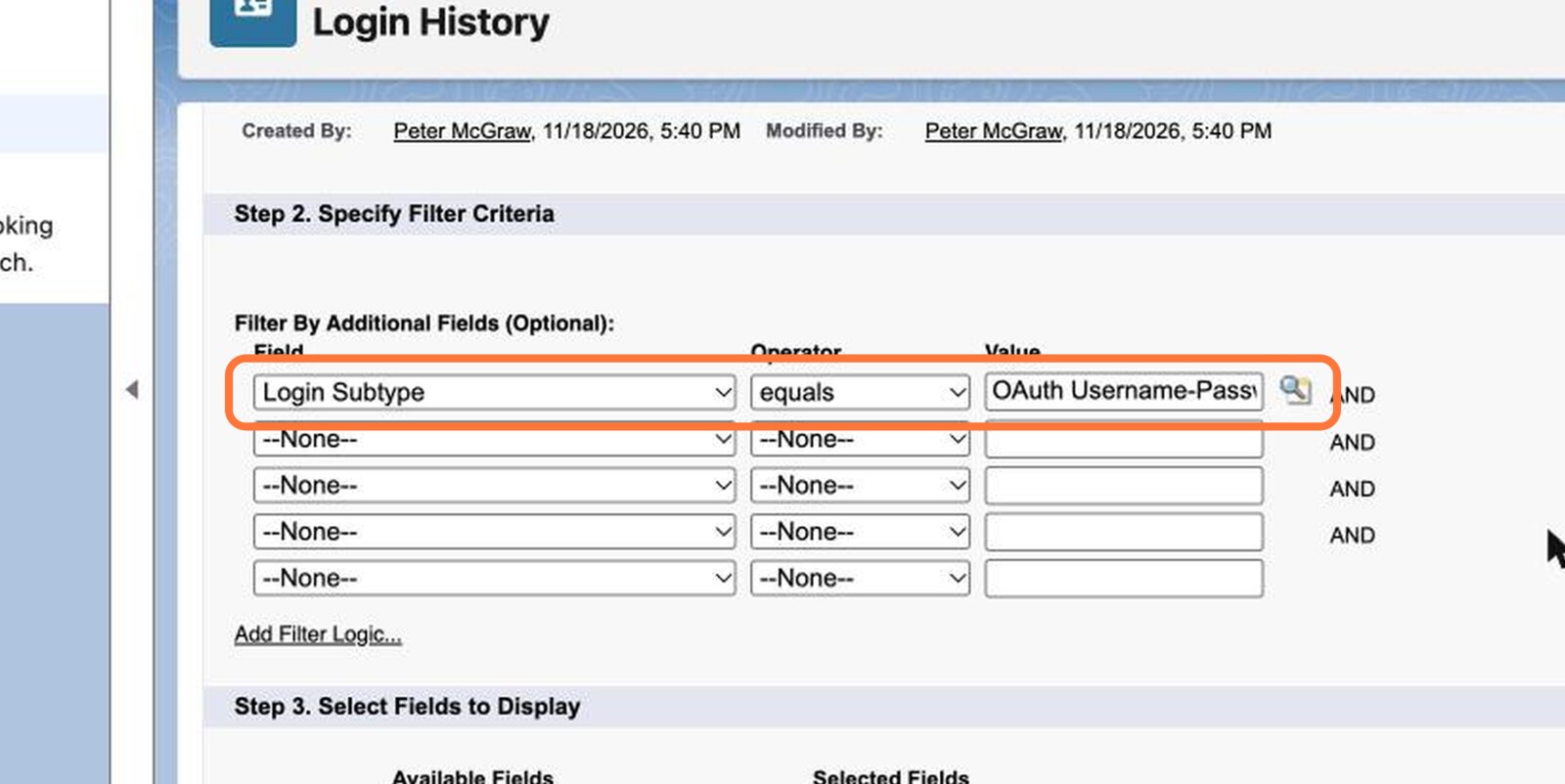
Clear Quick Find, type Login History and open it. Next to the View dropdown, select Create New View and name it “Feb 20 check”, so you can find it again.
Add one filter: Login Subtype equals OAuth Username-Password, typed exactly like that.
 (opens full size in a new tab)
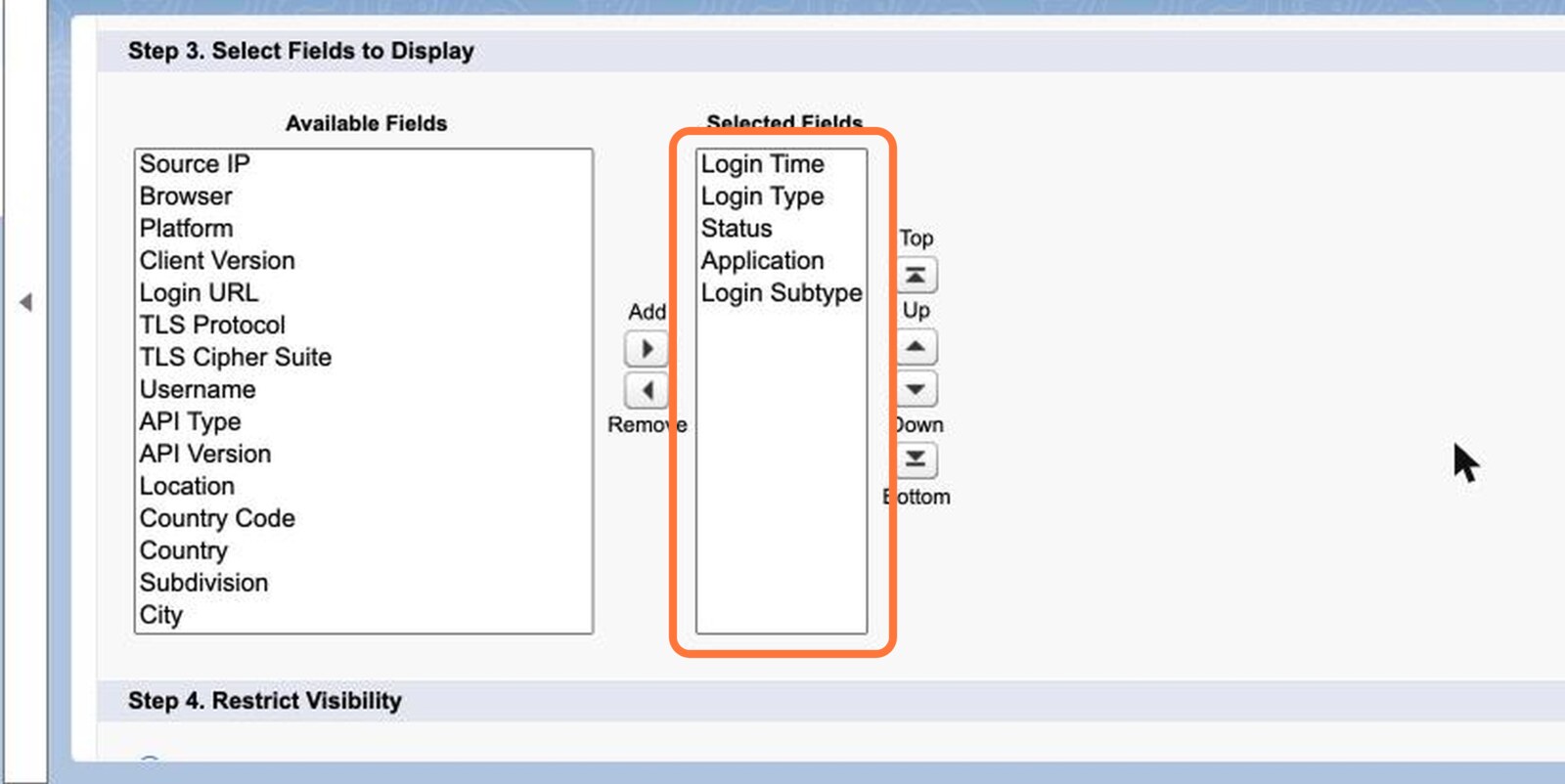
For columns, show Login Time, Login Type, Status, Application and Login Subtype, then save. If you’ll be sharing your screen, leave Username and Source IP out.
 (opens full size in a new tab)
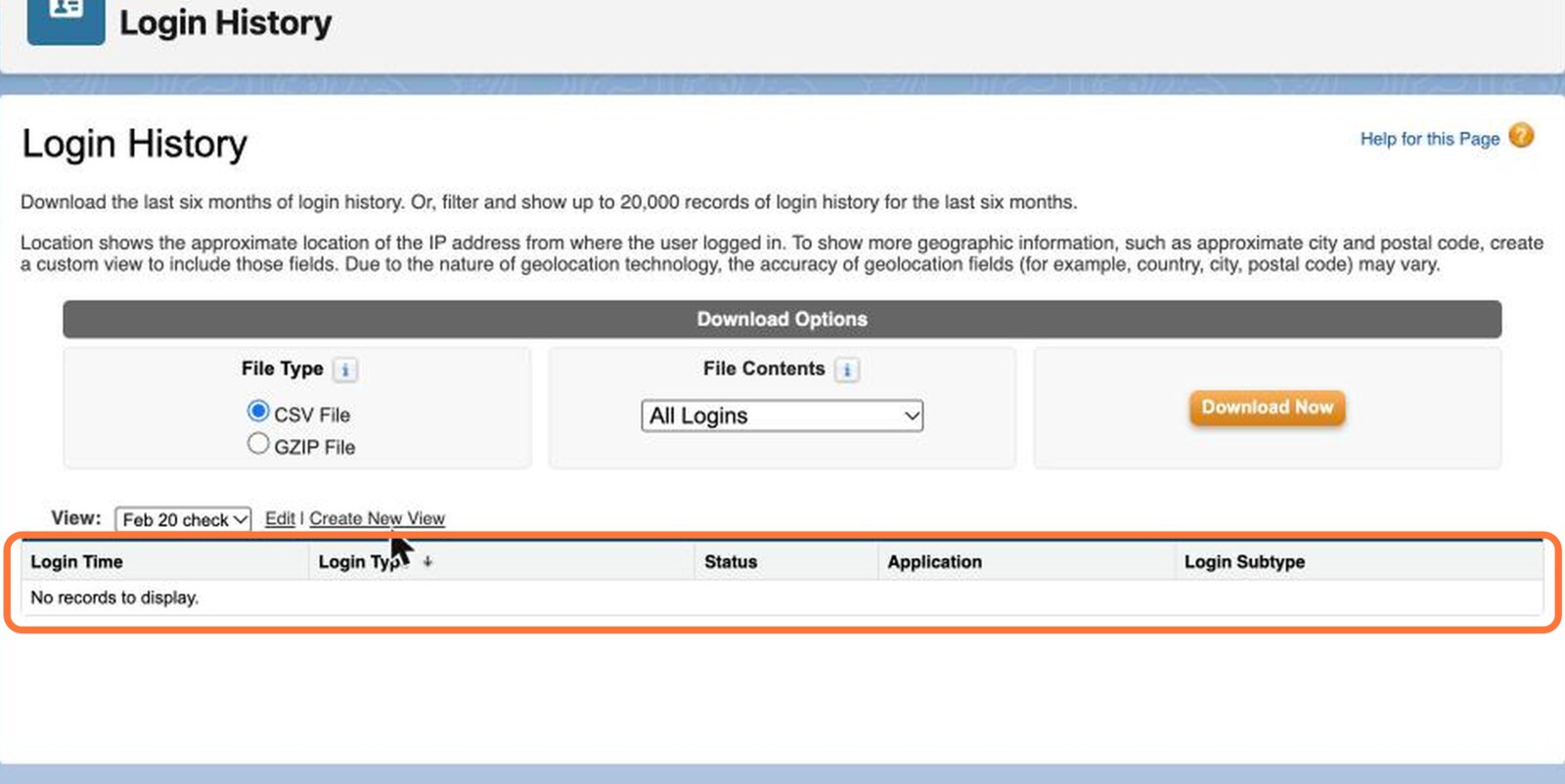
Step 3: Export it, and name an owner for every row
Every row in your view is an integration that stops logging in on Feb 20. To export it, use Download Now at the top of Login History. That file holds every login from the last six months, not just your view, so filter it down to the same OAuth Username-Password logins. Then put an owner’s name next to each row.
 (opens full size in a new tab)
| Application | Login time | Status | Owner (you add this) |
|---|---|---|---|
| Nightly ERP sync | Nov 17 | Success | Finance systems |
| Marketing data loader | Nov 16 | Success | Unknown |
| Legacy middleware | Oct 2 | Success | Unknown |
What a finding looks like. An illustration, not a real org: two of the three rows have no owner, and nobody fixes an integration nobody owns.
What Login History won’t show you
Your export is a good start, not the whole list.
- It goes back about six months. A job that runs quarterly or once a year may not be there yet.
- These logins don’t appear on the Connected Apps OAuth Usage page, so don’t use that page as your list.
- If you have Event Monitoring, LoginEvent carries the same Login Subtype and keeps more history.
- So ask around: ETL tools, yearly jobs, and anything a vendor or contractor set up and then left.
Run the view again in January, and once more the week before Feb 20.
Who logs in decides where it moves
A person, through an app
Someone signs in and the app acts for them.
Move to the web-server flow with PKCE.
The user signs in once, and the app never holds a password.
A system, on a schedule
Middleware, nightly jobs, data loads.
Move to the client credentials flow.
It runs as one integration user you choose, so give that user only what the job needs. Prefer a certificate? Use the JWT bearer flow.
A vendor’s packaged app
Installed from AppExchange or set up by the vendor.
Wait for the vendor’s own update.
Don’t rebuild it. Ask the vendor for their date and which flow they’re moving to.
Build every new login on an External Client App. Salesforce ends Connected Apps support in Summer ’27, so a new connected app now is work you’d do twice.
The order of work
- Inventory. The Login History export, plus what people remember.
- An owner for every row. No owner, no fix.
- Swap, on an External Client App. Then turn off Allow OAuth Username-Password Flows in a sandbox and see what breaks, today instead of on Feb 20.
- Verify. No new rows in your Login History view after the swap.
- Retire the old credential. Rotate or remove the password the integration used to log in with.